

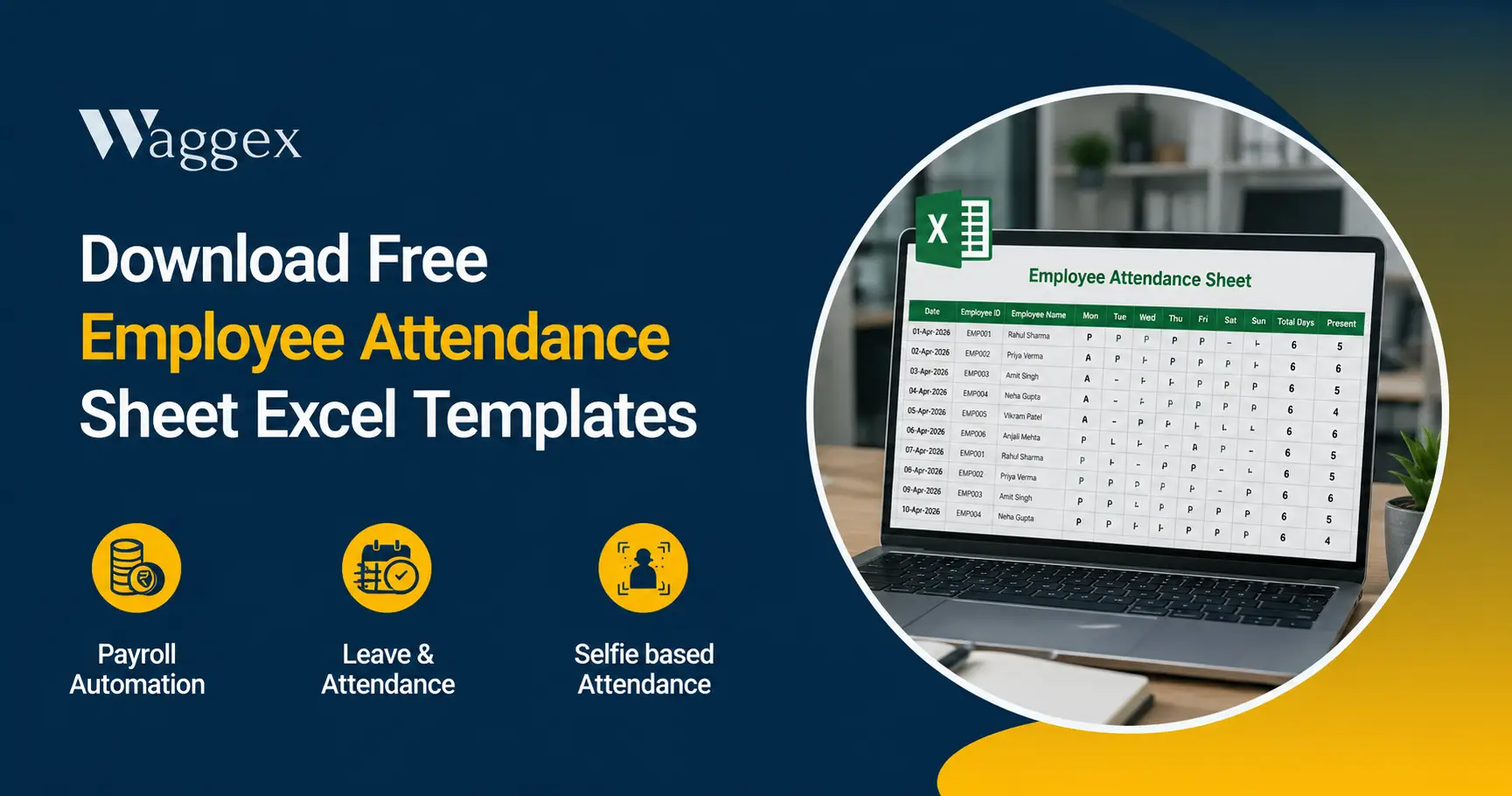
Not every business is ready to move to a digital HR system. And that’s completely fine. Some businesses are too small to justify a monthly subscription. Some owners prefer to stay in control of their own data. Some teams just work well with a shared Excel file that everyone understands. Whatever the reason if an attendance sheet is what you need, this page has four of them, designed for different types of Indian businesses.
We’re not going to spend this article telling you spreadsheets are outdated. They’re not for the right situation, a well-built attendance sheet works perfectly. What we will do is give you templates that are actually useful: pre-formatted, with formulas already built in, so you spend your time filling in attendance, not building the sheet itself.
At the very end, we’ve included a brief note for anyone who is curious about what digital tools offer just one short section, and only if that’s relevant to you. The rest of this article is entirely about making your Excel attendance management as smooth as possible.
| Free Download 4 Excel Attendance Templates in One File Small Business · Field & Remote Teams · Manufacturing & Factory · Retail & Multi-Branch Format: .xlsx works in Microsoft Excel, Google Sheets, and LibreOffice Calc All formulas pre-built. No setup required. Just add employee names and start marking attendance. |
Which Template Is Right for Your Business?
The Excel file has five tabs. The first tab (How to Use) explains everything in brief. The remaining four are the actual templates each designed for a different type of team. Here’s how to decide:
| Tab | Template Name | Best Suited For | What’s Pre-Built | Employee Rows |
|---|---|---|---|---|
| Tab 2 | Small Business | Offices, startups, shops 5 to 25 employees in one place | Monthly calendar, auto-totals for P / A / L / H / WO | 15 rows |
| Tab 3 | Field & Remote Teams | Delivery staff, field sales, remote workers | Weekly format, site visited, GPS column, auto hours | 20 rows/week |
| Tab 4 | Manufacturing & Factory | Factories, warehouses, shift workers | Shift codes A/B/C/G, 26-day grid, OT column, biometric ID | 40 rows |
| Tab 5 | Retail & Multi-Branch | Stores, restaurant chains, multi-location businesses | Monthly calendar, branch column, attendance %, dashboard | 25 rows |
All four templates use the same status codes so switching between them is easy. The formulas in each template update automatically you don’t need to change any formula yourself.
Attendance Status Codes What Each Letter Means
All four templates use consistent status codes. Type these into the daily attendance cells. The totals at the end of each row update automatically based on what you enter.
| Code | Meaning | Code | Meaning | Code | Meaning |
|---|---|---|---|---|---|
| P | Present | A | Absent | L | Approved Leave |
| H | Public Holiday | WO | Week Off | HD | Half Day |
| OT | Overtime | AB | Absent (factory) | — | Leave blank if not applicable |
Tip: You can add your own codes if needed. Just update the COUNTIF formula in the summary column to include the new code. For example, to count ‘BD’ (Business Day Off), add a new column with =COUNTIF(range,”BD”).
Template 1 Small Business Monthly Attendance Sheet
Best for: Offices, shops, trading businesses, clinics, small service companies any team of 5 to 25 people all working from one location.
This is the most straightforward of the four. It covers one full calendar month (pre-set to July 2026 change the month and the day headings update). Each row is one employee. Each column after the name columns is one date. Saturdays and Sundays are shaded so you can see week-offs at a glance without counting columns.
What’s already built in
- Summary columns at the right automatically count P, A, L, H, and WO for each employee using COUNTIF formulas no manual totalling
- Monthly totals row at the bottom sums up all employees’ present/absent/leave days
- Weekend shading highlights Saturdays and Sundays in a lighter colour
- Status legend printed at the bottom of the sheet for quick reference
How to use it
- Enter company name, department, and month in the header row
- Add employee names in column B, starting from row 7
- Type the status code (P, A, L, H, WO, HD) in the cell for each date
- The summary columns update automatically as you type
- Print or save as PDF at month-end for records
| Practical Excel tip: Select the entire attendance data area and use Data → Filter so you can filter by department, show only absences, or sort by name. For teams with more than 15 employees, just copy the last employee row and paste below the formulas will adjust automatically. |
Template 2 Field & Remote Employee Attendance Sheet (Weekly)
Best for: Delivery executives, field sales teams, service technicians, housekeeping staff, remote employees anyone whose workday doesn’t start at a fixed office.
A monthly date grid doesn’t capture what you actually need for a field employee. You need to know where they went, not just whether they were “present”. This template uses a weekly format instead of monthly, with columns specifically designed for field work: check-in time, check-out time, site or location visited, hours calculated automatically, and a GPS verified column where a manager can mark ✓ or ✗ after confirming the visit.
What’s already built in
- Total Hours column calculates automatically from check-in and check-out times using a simple time formula
- GPS Verified column for the manager to confirm (✓ or ✗) whether the location was actually visited
- Site / Location Visited column so there’s a written record of where each employee was each day
- Remarks and Signature columns for any notes or physical sign-off
How to use it
- Fill in the week commencing date in the header
- Add employee names and phone numbers in the first columns
- For each weekday, enter check-in and check-out times in HH:MM format
- Enter the site or client location visited in the Location column
- Manager verifies and marks the GPS column at end of day or week
- Print weekly for records, or keep digital copies by date
Suggested practice: For field employees, ask them to WhatsApp a photo from the client location alongside the time. Keep these photos in a folder named by date it creates a verifiable record without needing any app.
Template 3 Manufacturing & Factory Shift Attendance Sheet
Best for: Factories, warehouses, construction sites, hospitals, hotels any business running multiple shifts where simply marking P or A isn’t enough.
A factory floor needs more than present or absent. You need to know which shift the employee worked, whether they did overtime, and whether their biometric device ID matched. This template uses a 26-day grid (the typical working-days range for most Indian factories) with shift codes instead of P/A:
- A = Morning shift (6 AM – 2 PM)
- B = Afternoon shift (2 PM – 10 PM)
- C = Night shift (10 PM – 6 AM)
- G = General shift (9 AM – 6 PM)
- AB = Absent
- L = Leave
What’s already built in
- Days Worked column counts all shift codes (A, B, C, G) combined tells you total working days per employee
- Absent column counts AB entries automatically
- Leave column counts L entries separately
- OT Hours column left blank for manual entry fill in actual overtime hours per person
- Biometric / App ID column for recording device IDs to cross-reference with your biometric machine export if you have one
For factories with more than 40 workers: copy the entire block of 40 rows and paste below. The formulas will extend correctly. You can also split by department use one copy of the sheet per department, then consolidate totals in a summary sheet.
Template 4 Retail & Multi-Branch Attendance Sheet
Best for: Retail stores, restaurant chains, salon groups, franchise operations any business with employees across more than one location.
The challenge with multi-branch attendance isn’t tracking it’s consolidation. Each branch manager keeps their own records, and at month end, someone has to combine them. This template adds a Branch/Store column next to each employee’s name, so all locations can be tracked in one sheet and filtered by branch instantly.
What’s already built in
- Branch / Store column next to employee name filter by branch to see one store’s attendance at a time
- Attendance % column automatically calculates what percentage of working days each employee was present
- Summary Dashboard at the bottom shows total employees, total present days, total absent, total leave, and average attendance % across the entire team updates automatically
- Weekend shading highlights Saturday and Sunday columns
Useful trick for multi-branch businesses: Use the Data → Filter option on the Branch column. Select a single branch to see only that location’s attendance. This is much faster than keeping separate sheets per branch everything is in one file, one place, one month-end print.
Getting the Most Out of an Excel Attendance Sheet
A template is only as good as the process around it. Here are a few habits that make Excel attendance management work reliably:
- Lock the formula cells. In Excel, select all the formula cells (the summary columns), right-click → Format Cells → Protection → tick ‘Locked’. Then go to Review → Protect Sheet. This prevents accidental overwriting of formulas while still allowing attendance entry in the data columns.
- Use a shared drive, not email. If more than one person fills in the sheet branch managers, supervisors keep the master file on Google Drive or SharePoint. Multiple people can update their section without creating version conflicts. One file, always current.
- Create a monthly archive. At the end of each month, save a copy named by month and year (e.g., Attendance_July2026.xlsx) before starting a new month. Three months from now, if there’s a salary dispute, you’ll be glad you have an unedited copy.
- Cross-check against payroll before finalising. Before salary is calculated, run a quick check: do the total present days per employee add up correctly? Is anyone showing more than the total working days in the month? A five-minute check at this stage saves hours of correction later.
- Use conditional formatting for quick spotting. Highlight all cells where the value is A in red, P in green. Excel does this automatically once set up. At a glance, attendance problems employees absent in clusters, a whole team absent on the same day become visible without reading every cell.
A Note on Compliance Records
The Labour Codes that came into effect in November 2025 require that attendance and wage records be maintained digitally for most establishments. This doesn’t mean you can’t use Excel a saved and backed-up Excel file counts as a digital record. What it means is that paper registers alone are no longer sufficient for many businesses.
Make sure your Excel attendance files are: saved with the correct month and year in the filename, backed up to a cloud drive, and retained for at least three years (the standard period for labour law audits). If a labour inspector asks for attendance records, a well-organised set of monthly Excel files is perfectly acceptable.
For more on what compliance actually requires, our Payroll Compliance in India: Complete Guide (2026) covers the current statutory deadlines and record-keeping obligations in plain language.
If You Ever Want to Go Beyond Spreadsheets
We’ll keep this short and you can skip it entirely if spreadsheets are working for you.
A lot has changed in HR software over the last few years. The tools that used to feel complicated or expensive for small businesses have become much simpler and more affordable. AI-assisted payroll, GPS attendance from a phone, face recognition without biometric hardware, salary calculations that run automatically from attendance data these are available today at prices that make sense even for a 10-person team.
We built Waggex for exactly this Indian small businesses that want the benefits of digital attendance and payroll without a complicated setup. GPS-verified attendance, FaceLens face recognition, and automatic payroll with PF, ESI, and TDS all connected, no Excel required. Free plan for up to 10 employees. If you’re curious, you can try it at waggex.com no credit card, and it takes less than a day to set up.
But if Excel is what works for your team right now these templates are here for you, no conditions attached.